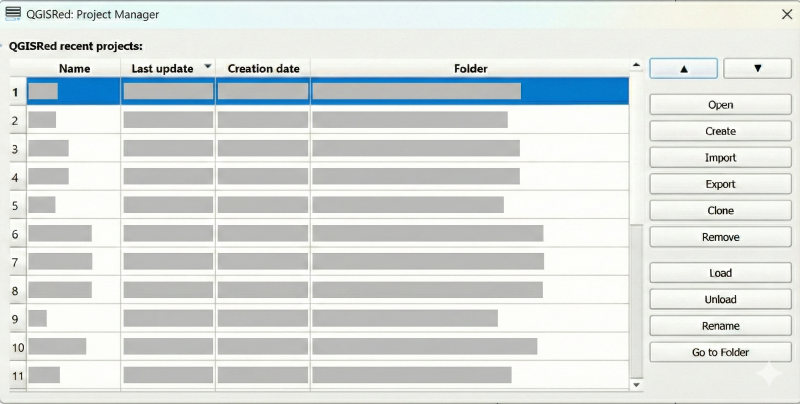
The QGISRed Project Manager is one of the most widely used tools by QGISRed users, as it allows easy switching between scenarios. In daily use, you may have missed some options that version 0.17 now completes.
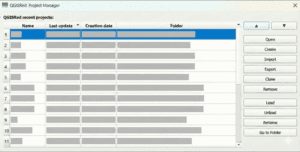
First, you can now click on the header of any column in the project list table to sort them in ascending order, and with a second click in descending order. This order is temporary and will revert when the dialog is closed. However, users often want projects to be displayed in a specific order (most used at the top, alphabetical order, by date, etc.). For this purpose, the new dialog includes two arrow buttons that allow moving the selected project up or down. When closing the dialog, the new order is preserved.
If you are careful and organized, you may need to rename an existing project to differentiate it from a new one or to establish a taxonomy among them. The new Rename button allows changing the name of the selected project. Note that this not only changes the name shown in the Project Manager and on the map; the name is also linked to the data file names, which are therefore renamed as well.
On the other hand, when a project is unloaded from the list using the Unload option, it disappears from the list but its files remain on disk, allowing it to be recovered using the Load button. Sometimes, however, the intention is to completely delete the project from disk because it was only a test. The new Remove button allows completely deleting the selected project from disk, after a confirmation prompt.
Finally, there are cases where the current project needs to be shared with a colleague to work on another machine. A QGISRed project groups many files, and care must be taken to relativize all paths with respect to the folder containing the scenario data. In version 0.17, the path to the .qgz file stored in metadata.txt has already been relativized with respect to the project folder, and by default the .qgz file also relativizes the paths of the data displayed in the different layers. As a result, it is now possible to export an entire QGISRed project into a compressed .zip file and then import it on another machine. The new Export button allows exporting the selected project from the list. In turn, the existing Import button now includes a new tab in the dialog that allows importing a complete QGISRed project by reading and interpreting the provided .zip file.
All these options will be explained in more detail through practical exercises in a future tutorial currently in preparation.