 QGISRed
4.2 Project Configuration
This page brings together three configuration dialogs that affect the hydraulic behavior of the model and the default values used when creating new elements: Analysis options (Analysis bar) and Default values / Materials table (Project bar).
Analysis options#
Analysis bar → Analysis options... (Analysis options)
Opens the main EPANET options dialog. It is equivalent to section [OPTIONS] of file .inp.
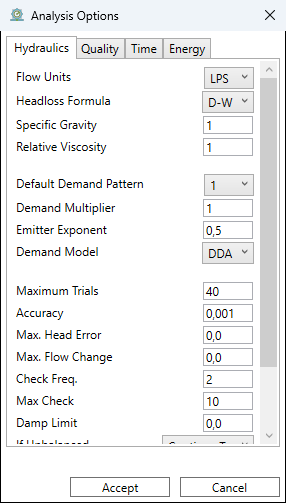
Analysis Options Dialog: Hydraulics, Quality, Time and Energy tabs
Hydraulic Tab#
| Field | Description |
|---|---|
| Flow units | Defines the system of units of the project. Metric units (LPS, LPM, MLD, CMH, CMD) correspond to SI; gallons and cubic feet (CFS, GPM, MGD, IMGD, AFD) to US |
| Head loss formula | Darcy-Weisbach (D-W), Hazen-Williams (H-W) or Chezy-Manning (C-M) |
| Specific gravity | Specific weight of the fluid with respect to pure water (1.0 for standard water) |
| Relative viscosity | Factor on the kinematic viscosity of water at 20 °C |
| Precision | Convergence criterion of the hydraulic solver |
| Demand model | DDA (Demand Driven) or PDA (Pressure Driven) — in PDA, demand is reduced if the pressure drops below a threshold |
| Minimum / nominal pressure | Thresholds for the PDA model |
| Max. iterations / ratio | Solver convergence parameters |
💡 Changing the flow units does not convert the values already entered. If the network is set to LPS and you switch to GPM, all demand, flow, and length values will need to be updated manually.
Quality Tab#
| Field | Description |
|---|---|
| Type of quality analysis | None (does not simulate quality), Chemical (reagent), Age (water age), Trace (tracer) |
| Reagent label | Name of the modeled product (e.g. "Chlorine") — will appear in the results |
| Tracer node | For Trace type analysis, tracer source node ID |
| Concentration units | mg/L or μg/L |
| Diffusivity | Relative molecular diffusion coefficient (1.0 for chlorine in water) |
| Tolerance | Convergence criterion for the quality solver |
Time Tab#
| Field | Description |
|---|---|
| Simulation duration | Total simulation time. Format HH:MM:SS or in hours (e.g. 24:00:00) |
| Hydraulic time step | Hydraulic calculation interval (typically 1 h) |
| Quality time pass | Quality calculation interval (typically 5 min) |
| Report time step | How often results are saved (determines the number of moments available in the Viewer) |
| Simulation start time | Clock time corresponding to instant 0 of the simulation |
| Type of statistician | None (all instants), Average, Minimum, Maximum, Range |
💡 A 1-h reporting step in a 24-h simulation generates 25 result instants (0 h to 24 h). Shorter steps increase the temporal resolution but also the size of the result files.
Energy Tab#
Allows you to define the energy cost of the pumps for consumption analysis:
| Field | Description |
|---|---|
| Global price | Cost per kWh (in defined currency) |
| Price pattern | Temporal pattern of electricity price variation |
| Overall efficiency | Average efficiency of the pumps (if they do not have individual efficiency curve) |
Default values#
Project bar → Default values (Default values)
Defines the values that are automatically assigned to new elements when they are created with the editing tools.
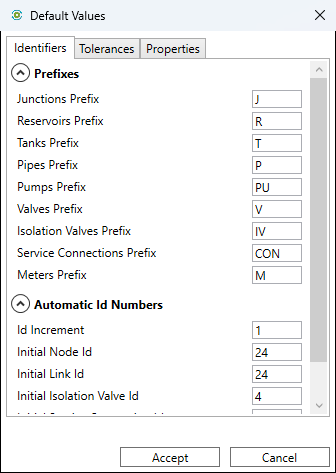
Defaults dialog with sections for nodes, pipes and prefixes
ID Prefixes#
Each item type has a configurable prefix that is used when automatically generating the ID of new items:
| Element | Default prefix | Example of generated ID |
|---|---|---|
| Junction | J | J-1, J-2… |
| Pipe | P | P-1, P-2… |
| Tank | T | T-1, T-2… |
| Reservoir | R | R-1, R-2… |
| Valve | V | V-1, V-2… |
| Pump | BM | BM-1, BM-2… |
The prefixes are configurable. The starting number can also be set.
Initial hydraulic values #
| Field | Description |
|---|---|
| Default diameter | Diameter (mm or inches) assigned to the new pipes |
| Default roughness | Roughness coefficient according to the active formula |
| Default elevation | Elevation (m or ft) assigned to the new nodes |
| Default base demand | Initial demand of the new demand nodes |
| Default pump speed | Initial relative speed factor for pumps |
Geometric tolerances#
| Field | Description |
|---|---|
| Node Tolerance | Maximum distance (m or ft) to consider two points to be the same node |
| Minimum length for division | Minimum length of the resulting sections when dividing a pipe |
| Maximum length for division | Maximum length of the resulting sections when dividing a pipe |
Materials table#
Project bar → Materials table (Materials table)
Manage the list of materials available for pipes and their aging properties.
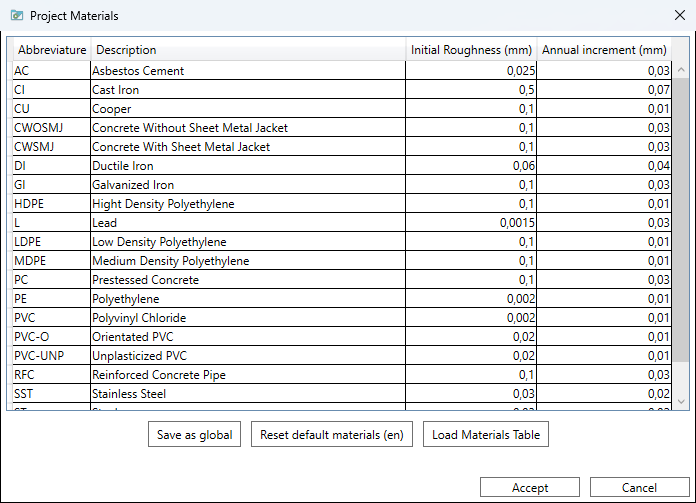
Table of materials: code, name, initial roughness and annual increase
Table fields#
| Field | Description |
|---|---|
| Abbreviation | Material short code (e.g. PVC, DI, AC) |
| Description | Full name (e.g. "Ductile Iron", "Asbestos Cement") |
| Initial roughness (mm) | D-W roughness coefficient at installation date |
| Annual increase (mm) | Increase in roughness per year of age |
Add a material#
The table always shows an empty row at the end. Write directly in it (abbreviation, description, initial roughness and annual increment) and, as soon as you leave the row, QGISRed registers it as a new material and adds another empty row below it — no separate "Add" button is needed. If you leave the initial roughness or increment blank, they are saved as 0.
Delete a material#
Select a row and press Del to delete it. If the material is assigned to a pipe or connection, QGISRed notifies how many elements use it and asks for confirmation before deleting it — if you accept, those elements are left without assigned material.
Use with the "Assign Roughness" tool#
When you use the Assign Roughnesses tool from the Tools bar, QGISRed searches this table for the material of each pipe and calculates:
Rugosidad = Rugosidad_inicial + (Año_actual - Año_instalación) × Incremento_anual
💡 You can add custom materials. The materials defined here are also available when creating new pipes from the Edition bar.
Materials included by default#
QGISRed includes a predefined material table with the most common ones (FG, FD, ACE, PVC, PE, PE-AD...). You can edit or extend them according to the characteristics of your system.
Save and reuse tables between projects#
The materials table is unique to each project, but can be shared with other projects by saving it as a global table (saved in the user profile, outside of any project — one .dbf per table).
With an active project ("Project Materials" window), the dialog directly edits the project table (without drop-down) and offers these buttons:
| Button | Action |
|---|---|
| Save | Closes the dialog and saves the changes to the project. |
| Save as global | Saves a copy of the current table as a new global table, asking for a name. If a global table with that name already exists, asks for confirmation before overwriting it. |
| Restore default materials (language) | Replaces the project table with the predefined QGISRed one in the language indicated in parentheses (the one of the interface), discarding the current project materials. |
| Load Materials Table | Replaces the project table with another one, chosen in a separate dialog that lists both the global tables saved by the user and the predefined QGISRed ones (marked "(default)"). |
| Cancel | Closes the dialog without saving changes. |
No active project: global table manager#
If you open Material Table without any active QGISRed project (for example, as soon as you open QGIS, before creating or opening a project), the dialog opens as a separate window ("Global Material Tables") to manage the saved global tables, with the label "Select the global material table" next to a drop-down list that lists all the available ones:
- Global tables saved by the user (created with "Save" or "Save as..."), editable.
- QGISRed predefined tables by language, marked with the suffix "(default)" — read-only: the grid cannot be edited while one of these is selected.
Next to the dropdown is a Delete button that deletes the selected global table; it is only available for your own tables, not for predefined read-only ones.
The buttons below change depending on the selected table:
| Button | When does it appear | Action |
|---|---|---|
| Save | Only with own table selected (not predefined) | Saves changes over the already selected table, without asking for a new name — unlike Save As.... |
| Save as... | Always | Requests a new name and saves a copy as a global table; if the name already exists, asks for confirmation before overwriting it. If successful, it adds it to the dropdown and selects it next. |
| Restore default materials (language) | Only with own table selected (not predefined) | Replaces the content of the current table with the predefined one of the interface language. |
| Cancel | Always | Closes the window. |