 QGISRed
4.3 Save, Export and Close Project
Save the project map#
Project bar → Save map (Save project map)
Saves the QGIS file (.qgz) that contains the project's visual settings: loaded layers, styles, group visibility, map framing, etc.
First time#
If the QGIS project does not already have a .qgz file, the plugin opens the standard QGIS dialog "Save As" automatically suggesting the QGISRed project folder and the network name as the file name:
{CarpetaProyecto}/{NombreRed}.qgz
Later Saves#
If a .qgz already exists, it directly overwrites it (equivalent to Ctrl+S in QGIS).
💡 Recommendation: save the
.qgzin the same folder as the project's SHPs. Thus, if you copy the folder to another computer, the.qgzfile will find the SHPs without the need to reconfigure paths.
Export the project#
Project Manager → Export
Generates a portable ZIP file with the project: the SHP/DBF of the network, the QGIS map (.qgz) if it exists, and optionally the content groups and complementary data (background cartography, MDT, orthophotos...) referenced by that .qgz.
Before exporting#
If the project you export is the one you have open in QGIS and its .qgz has unsaved changes, QGISRed asks first:
"The QGIS project has unsaved changes. Do you want to save it before exporting?"
- Yes: save the
.qgzand export that newly saved version. - No: exports the
.qgzas it was in the last save (pending changes do not travel in the ZIP). - Cancel: The export dialog does not open.
The export dialog#
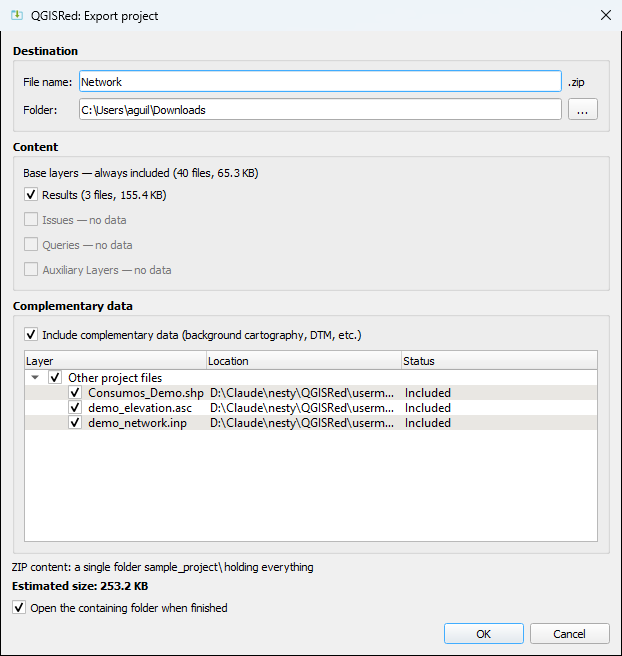
QGISRed export project dialog
| Field | Function |
|---|---|
| File name: | ZIP name (without extension); by default, the network name |
| Folder: | Destination folder; by default, the user's Downloads folder |
| Content | Optional groups to include (see below) |
| Complementary data | External data referenced by .qgz, selectable one by one |
| Open the containing folder when finished | Open the file explorer in the destination folder when finished (enabled by default) |
What is always included#
- The SHP+DBF+PRJ of the network in the root of the project folder (Pipes, Junctions, Valves, Pumps, Tanks, Reservoirs, Demands, Sources...) and the options and metadata files (
_Options.dbf,_Title.dbf). - The map file
.qgz, if QGISRed finds it in the project folder or in its parent folder. If there is no.qgzsaved, the dialog warns that the map display will not be exported.
What's optionally included#
Four content groups, each with its own box in the Content section (checked by default if the group has data from this network; if empty, the box is disabled):
| Box | Content |
|---|---|
| Results | Simulation results saved in Results/ |
| Issues | Incidents detected by verifications, in Issues/ |
| Queries | Queries saved, in Queries/ |
| Auxiliary Layers | Auxiliary layers (for example, of the Nodal demand builder), in Auxiliary Layers/ |
If the .qgz references complementary data, the dialog adds a Complementary data table with one row per layer (name, location, and state), each with its own checkbox — so you can leave out, for example, a multi-GB MDT without giving up the rest.
If the project folder also contains other files that aren't part of the network (a stray .inp, notes, an unrelated SHP, or even another complete QGISRed project sharing the folder), the dialog groups them under Other project files — with a subgroup for each other QGISRed project detected — each with its own checkbox, just like the complementary data.
What is not included#
- Content groups that you leave unchecked.
- The complementary data that is outside the project folder and its parent folder: the dialog marks them as "Not exportable" and warns before exporting. To include them, move them with the file explorer to the project folder (or next to it) and reopen the project so that QGISRed relinks them.
- Remote background layers (WMS services, XYZ, databases): there is nothing to copy, so they never block the export or appear in the table.
Where is it saved#
{CarpetaDestino}/{NombreArchivo}.zip
By default {CarpetaDestino} is the user's Downloads folder and {NombreArchivo} is the network name, but both are editable in the dialog. If a ZIP with that name already exists, QGISRed asks if you want to overwrite it.
Upon completion, QGISRed shows the full path of the created ZIP in the message bar.
💡 Best Practices: Export the project before operations that modify many elements at once (bulk imports, CRS changes, roughness conversions) and before updating the plugin version. To recover an exported project, use Import project → "QGISRed project" tab — see Open and import projects.
Close project#
Project bar → Close project (Close project)
Close the current QGISRed project and clean the QGIS session: delete all loaded layers and restore the initial state.
It is equivalent to using Project → New, Project → Close or Project → Open in the native QGIS menu, and also to closing the QGIS window directly: QGISRed intercepts all four actions to ask with its own dialog, instead of letting QGIS do it.
Summary: what each option saves#
| Operation | What keeps | Where |
|---|---|---|
| Editing Tools | Attributes and geometry | SHP/DBF on disk, immediately |
| Save map | Styles, visible layers, framing | File .qgz |
| Export project (Project Manager → Export) | Network SHP/DBF, .qgz and optionally supplementary data and content groups |
File .zip in the folder of your choice |