 QGISRed
5.3 Element Properties
Edition bar → Edit element properties…
The properties dialog is the central tool for viewing and editing all attributes of any network element. It works as a smart form that loads the data of the clicked element and allows you to navigate between elements without closing it.
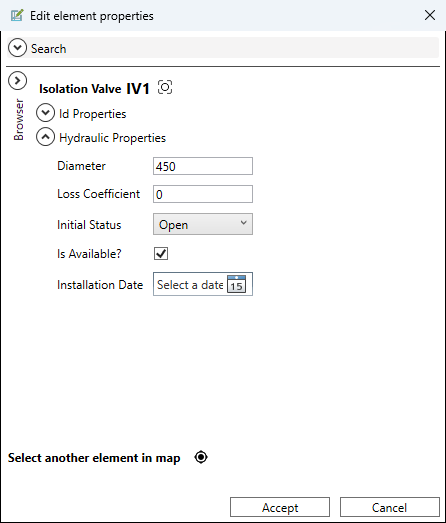
Properties dialog of a pipe with all its fields
How to open the dialog#
- Activate the tool by pressing the Edit element properties… button (pencil/edit icon).
- Click on any network element on the map: pipe, node, valve, pump, tank or reservoir.
- The dialog opens showing all the attributes of the selected element.
The tool remains active as long as the button is pressed. You can click on different elements without activating it again.
Pipe fields#
| Field | Description |
|---|---|
| ID | Unique pipe identifier |
| Length | Length automatically calculated from geometry (m or ft) |
| Diameter | Inner diameter (mm or inches) |
| Roughness Coeff | Roughness for the configured head loss formula |
| MinorLoss | Minor loss coefficient (0 if not applicable) |
| InitStatus | Initial status: Open, Closed or CV (Check Valve) |
| Material | Material code (referenced in the Materials Table) |
| InstallYear | Year of installation (YYYY format), used to calculate aging roughness |
| BulkCoeff | Bulk reaction coefficient (for Chemical type quality models) |
| WallCoeff | Wall reaction coefficient (for Chemical type quality models) |
Node fields (Junctions)#
| Field | Description |
|---|---|
| ID | Unique node identifier |
| Elevation | Node elevation (m or ft) |
| Demand | Base demand (in project flow units) |
| Pattern | ID of the applied demand pattern |
| EmitterCoeff | Emitter coefficient (to model pressure-dependent leaks) |
| InitQuality | Initial water concentration or age (only if the quality model is active) |
Multiple demands#
The nodes can have more than one demand (user categories: residential, industrial, etc.). If the project has the optional layer {Red}_MultipleDemands.shp, the dialog shows an additional section where you can add, edit and delete demands by category:
| Field | Description |
|---|---|
| Demand | Demand value for this category |
| Pattern | Category Specific Demand Pattern |
| Name | Category label (informational) |
Tank fields#
| Field | Description |
|---|---|
| ID | Unique identifier |
| Elevation | Tank bottom level |
| InitLevel | Initial water level on the background |
| MinLevel | Minimum operating level |
| MaxLevel | Maximum operating level |
| Diameter | Tank diameter (0 if using volume curve) |
| MinVol | Minimum volume (m³) |
| VolCurve | Volume curve ID (for non-cylindrical geometry) |
| MixModel | Mixing model: MIXED, 2COMP, FIFO, LIFO. Defaults to MIXED on a new tank |
| MixFraction | Fraction of the first compartment (only visible if MixModel = 2COMP) |
Both fields are only shown if the project has an active quality model (Chemical, Age or Trace); without a quality model, EPANET does not mix anything and the fields provide no information.
Reservoir fields#
| Field | Description |
|---|---|
| ID | Unique identifier |
| Head | Fixed piezometric head (m or ft) |
| Pattern | Load variation pattern over time |
Valve fields#
| Field | Description |
|---|---|
| ID | Unique identifier |
| Diameter | Diameter (mm or inches) |
| Valve Type | Valve type: PRV, PSV, PBV, FCV, TCV, GPV |
| Setting | Regulation setpoint (pressure, flow or pressure loss depending on the type) |
| MinorLoss | Minor loss coefficient |
| InitStatus | Initial status: Open, Closed, Active |
Pump fields#
| Field | Description |
|---|---|
| ID | Unique identifier |
| Curve | Pump H-Q Curve ID |
| Speed | Turning speed factor (1.0 = nominal) |
| Pattern | Speed variation pattern |
| Power | Constant power (alternative to H-Q curve) |
| EfficiencyCurve | Efficiency curve ID (for energy analysis) |
| EnergyPrice | Specific energy price for this pump |
| PricePattern | Energy price variation pattern |
| InitStatus | Initial status: Open or Closed |
Navigation between elements#
The dialog includes a browser (Browser) that allows:
- Go to connected element: lists the nodes and elements connected to the current element to jump to them. On a pipe/valve/pump, its two end nodes are listed; on a node, the links that reach it. In both cases, isolation valves, meters and service connections are added, but only if their location matches the element (within the project's node tolerance) — being merely close by is not enough.
- History: Previous / Next buttons to return to previously visited items without closing the dialog.
- Center on map: button to move the map to the currently displayed element.
When navigating to another element from the dialog, QGISRed saves the changes from the previous element before loading the new one. It is not necessary to click "Accept" explicitly after each modification.
QGISRed exclusive fields#
These fields are not part of the EPANET standard but are used by the plugin:
| Field | Layer | Description |
|---|---|---|
| Material | Pipes | Material code referenced in the Materials Table |
| InstallYear | Pipes | Year of installation for calculation of roughness due to aging |
| IsActive | Various | Enable/disable the element in the Digital Twin |
| Tag | All | Free tag (equivalent to the EPANET TAG field) |