 QGISRed
5.2 Geometric and Topological Manipulation
The tools in the second group of the Edition bar allow you to modify the geometry and topology of the network without breaking connectivity. QGISRed maintains consistency between spatial geometry and model data at all times.
All the tools on this page that are activated by clicking on the map (Move nodes, Reverse elements, Merge/Dissolve junctions, Create/Remove T connections, Create/Remove crossings...) resolve the click against the closest element within the configured tolerance, not against the first one they find — important when there are several nodes very close to each other.
Multiple selection (Select multiple elements)#
Edition bar → Select multiple elements
Simultaneous selection tool on several layers. Activate it and draw a rectangle on the map: all elements of all the project layers that fall within the area are selected.
The selection is used as input for other tools: Reverse elements and Delete elements operate on the selected elements if there are any, or ask you to click on the map if there is no previous selection.
To deselect, press the button again or use
Ctrl+Shift+A(QGIS global deselect).
Move nodes#
Edition bar → Move nodes
Moves one or more nodes (Junctions, Tanks, Reservoirs) dragging with it all connected linear elements (pipes, valves, pumps). The network remains connected after the movement.
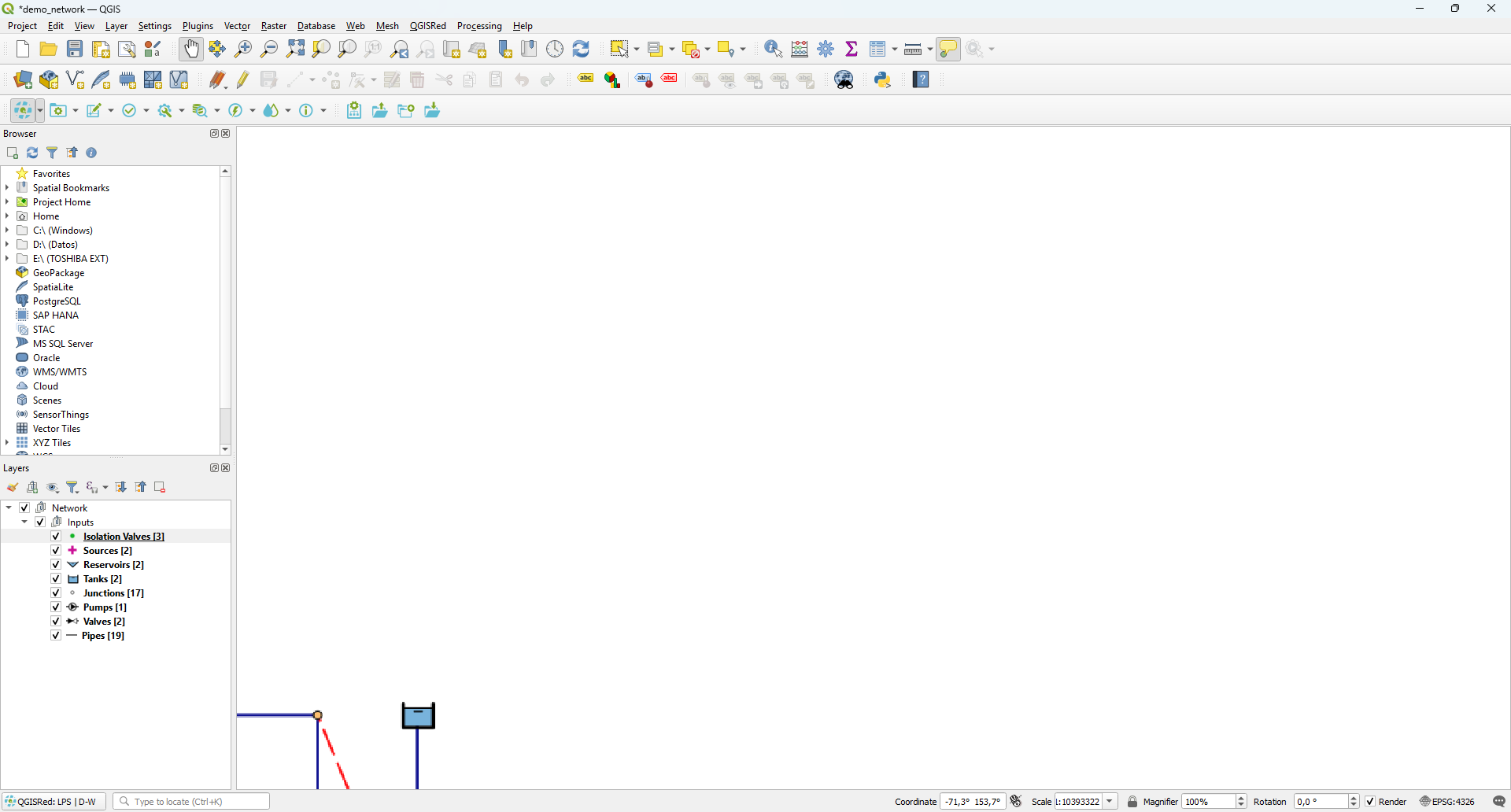
Move a node and its connected pipes on the map
How to use it#
- Activate the tool.
- Click on the node you want to move (or on a node area in the Junctions layer).
- Drag to the new position.
- Release the mouse button to confirm.
This tool does not move intermediate pipe vertices. For that, use Edit link vertices.
📝 The starting point of the drag snaps to the nearest node within 10 screen pixels, not a fixed distance in map units — so the tolerance stays the same regardless of the zoom level or the project's coordinate system.
Edit link vertices#
Edition bar → Edit link vertices
Allows you to adjust the visual layout of pipes and other linear elements by manipulating their intermediate vertices. It does not affect the end nodes or the topology.
Available operations#
| Action | Gesture |
|---|---|
| Move vertex | Click on an existing vertex (blue circle) and drag it |
| Add vertex | Click on the segment between two vertices to insert a new one |
| Delete vertex | Right click on a vertex to delete it |
Reverse elements#
Barra Edition → Reverse elements
Reverses the orientation of pipes and service connections. The orientation determines the positive direction of flow in the simulation results.
Two ways to use it#
- Over selection: Select one or more pipes with the multiple selection tool and press Reverse. They all reverse their orientation.
- By click: Without prior selection, press Reverse and click on the pipe you want to reverse.
The inversion only affects the sign convention of the flow rate in the results. It does not modify the hydraulic behavior in the simulation (EPANET always calculates the real direction of flow, regardless of the stored orientation).
Split/Join pipes#
Barra Edition → Split/Join pipes
Click on a pipe to split it at the indicated point: QGISRed creates a new junction at that point and two sections with the same diameter, material and InstallYear attributes as the original.
To join two pipes, click on the intermediate node they share: if that node has exactly two connected pipes and the diameter, material, roughness coefficient and InstallYear properties are the same, QGISRed merges them into a single section and eliminates the node.
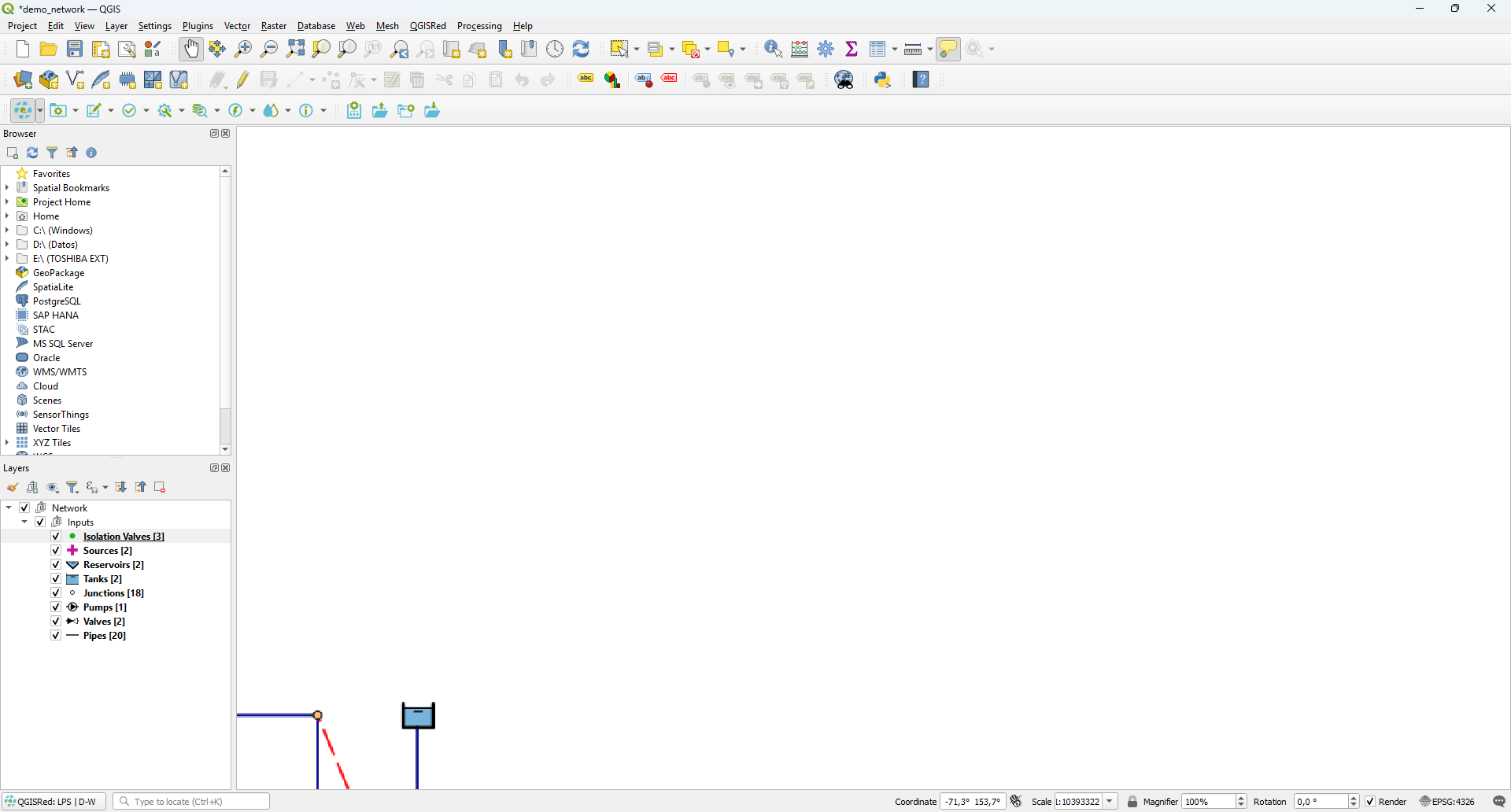
Split a pipe: an intermediate node and two sections are created
If the two pipes have a different diameter, material, roughness coefficient or year of installation, the connection is not made and the plugin shows a warning.
Merge/Dissolve junctions#
Barra Edition → Merge/Dissolve junctions
This tool operates with two clicks:
- A single click (click and without a second point): Separates the indicated node into as many independent nodes as there are pipes connected to it — you need at least two pipes connected to the node, otherwise QGISRed warns that there is nothing to dissolve. Useful when a node groups together several pipes that should not be topologically connected.
- Two clicks (origin → destination): Merges the origin node with the destination node. All pipes connected to the origin node are reconnected to the destination node. The origin node disappears. If the two nodes chosen are already the two ends of the same pipe, the merge is not performed (it would create a loop) and QGISRed displays a warning.
Common use cases:
- Merge two very close nodes that were separated when importing from
.inp. - Separate a node at a junction where the pipes are not actually connected.
What happens to the properties of the origin node when merging#
QGISRed does not simply discard the data of the disappearing node — it combines it with that of the destination node:
| Property | Behavior |
|---|---|
| Base demand | If the two nodes have a single demand with the same pattern, the base flows are added. In any other case, the demand(s) of the origin node are added as additional categories of the destination node (see Demands and scenarios). |
| Quality source | If only one of the two nodes has a quality source, that one is kept. If both have it with the same type and pattern, their intensities are added. If both have it but with a different type or pattern, the one from the destination node is kept and the one from the origin is discarded, with a warning. |
| Emitter coefficient | The coefficients of the two nodes are added. |
Create/Remove T connections#
Barra Edition → Create/Remove T connections
Manages T-joints: points where a node is very close to a pipe but not connected to it.
Create a T#
- Click on the node you want to connect.
- Click on the pipe to which it should be connected.
- QGISRed divides the pipe at the point closest to the node and connects both with a short pipe, or moves the node to the pipe if the distance is less than the tolerance.
Delete a T#
Click on the existing T connection. QGISRed checks that the two pipes on either side of the node are actually collinear (form a straight line, within an angular tolerance): if they are, it removes the intermediate node and restores the original pipe; if not, it rejects the operation and shows how much the most aligned pair deviates from that straight line, so you know if it really was a T connection or a real junction/branch.
Create/Remove crossings#
Edition bar → Create/Remove crossings
Manages crossings between pipes that intersect on the map:
- Create junction: Click on the intersection point between two pipes that do not have a shared node. QGISRed divides both pipes and creates a common node at the intersection.
- Delete junction: Click on a junction node that has exactly four connected pipes. QGISRed checks that those four pipes form two collinear pairs (two straight lines that intersect, within an angular tolerance); If the best possible match deviates further from the tolerance, it rejects the operation and displays the deviation angle instead of undoing a match that was not actually a match. If the check passes, remove the knot and replace the two original pipes that pass over it.
This tool does not apply snapping to avoid false positives. The crossover detection tolerance uses the value configured in Default Values.
Move valves and pumps#
Barra Edition → Move valves/pumps
Moves a valve or pump from one pipe to another maintaining all its properties (type, adjustment, curve...).
Process#
- Activate the tool. The cursor asks for the first click.
- Click on the source pipe (the one containing the current valve/pump).
- Click on the destination pipe (where the element will be inserted).
- QGISRed removes the element from the original position, restores the original pipe, and inserts it into the new position.
Change element status#
Edition bar → Change element status
Toggles the operating state (Open/Closed) of pipes and manual valves without opening the properties dialog.
- Single click: Toggle between Open and Closed.
- Ctrl + Click: Cycle through all available states: Open → Closed → CV (Check Valve) → Open.
The Isolation Valves layer can also be managed with this tool if it is loaded.
The state is stored in the
InitStatusfield of the corresponding layer and exported to the.inpof EPANET.
Delete elements#
Edition bar → Delete elements
Delete one or more elements from the project. It works in two ways:
- Over selection: Select items with the multiple selection tool and press Delete. All selected items are removed.
- By click: Without selection, activate the tool and click on the element to delete.
Behavior when deleting#
| Situation | What happens |
|---|---|
| Delete a pipe | The pipe is removed. End nodes remain if they have other connections; They are eliminated if they become isolated. |
| Remove a node with connected pipes | All connected pipes are also removed. |
| Remove a valve or pump | The two sections of pipe into which it was divided are automatically merged into one. |
| Delete a Tank or Reservoir | The element is converted to a Junction or removed if it has no connections. |
Deletion cannot be undone with
Ctrl+Z. QGISRed automatically saves the previous state of the project to the temporary folder before running the operation, but the only way to recover deleted data is to use a previous backup.