 QGISRed
5.4 Edit by Group
Edition bar → Edit properties by group…
The Edit properties by group tool allows you to modify an attribute of multiple network elements in bulk. Combine an optional filter with an edit action and apply the result to all elements that meet the condition, accumulating the changes in a QGIS edit buffer until the user commits or discards them.
The dialog is modeless: you can still interact with the map while it is open.
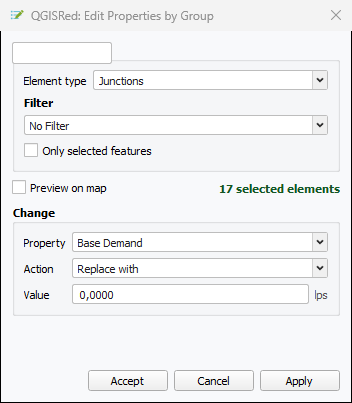
Edit properties by group dialog with configured filter and action
Available item types#
| Element | Description |
|---|---|
| Junctions | Network nodes |
| Multiple Demands | Multiple demands by category |
| Pipes | Pipes |
| Tanks | Tanks |
| Reservoirs | Reservoirs |
| Pumps | Pumps |
| Valves | Valves |
| Sources | Quality sources |
| Service Connections | Service connections |
| Isolation Valves | Isolation valves |
| Meters | Flowmeters |
🧪 Chemical Quality Fields: The BulkCoeff and WallCoeff (pipes) and ReactCoef and InitQuality (tanks, reservoirs, and nodes) fields only appear in the field selectors when the project's quality model is set to Chemical.
Select elements#
The Select Elements section of the dialog groups the field filter, map preview, and scope.
Field filter#
The field dropdown starts with the No Filter option. While that selection is held, the operator and value controls remain hidden and the action affects all elements of the chosen type.
When you select a specific field, the operator and value controls appear:
- The operator determines the type of comparison (see table below).
- The value is automatically filled with the unique values present in the layer. The list includes NULL as the first option:
- Operator
=with NULL generates an IS NULL filter. - Operator
≠with NULL generates an IS NOT NULL filter. - The value field has a × button to quickly delete it. Additionally, the field is editable: the user can enter a custom value that is not listed in the drop-down list.
Operators available by field type#
| Field type | Operators |
|---|---|
| Numeric | >=, <=, =, >, <, ≠ |
| List of values | = |
| Free text | =, ≠, ILIKE, NOT ILIKE, LIKE, NOT LIKE |
| Date | = (calendar selector) |
Preview on the map#
The Preview on map checkbox highlights in orange the elements that meet the active filter, updating in real time when any filter parameter changes. Next to this checkbox is the number of elements that match the filter at that moment.
Selected items only#
By checking Only selected features, the action affects only the elements that are selected on the map at the time you press Apply. The selection can be made before opening the dialog or while it is open.
Unchecked (default), the action is applied to all elements of the chosen type that meet the filter.
Edit action (“Do…” section)#
Defines which attribute to modify and with what value or transformation.
Actions for numeric fields#
| Action | Formula |
|---|---|
| Replace with | operando |
| Multiply by | valor_actual × operando |
| Add | valor_actual + operando |
| Subtract | valor_actual − operando |
| Divide by | valor_actual / operando |
| Clamp minimum to | max(valor_actual, operando) |
| Clamp maximum to | min(valor_actual, operando) |
Actions for text fields#
| Action | Result |
|---|---|
| Set to | Replaces the entire value |
| Prepend | Prepends the text to the current value |
| Append | Adds the text to the end of the current value |
| Find and replace | Search and replace (case sensitive) |
Actions for enumerated fields#
Just Replace with, selecting the new value from a list. The available options depend on the type of field:
| Field | Options Source |
|---|---|
InitStatus |
Fixed EPANET list (Open, Closed, CV, Active…) |
Material |
Project Materials Table |
Curve |
Project curves filtered by type (pump, volume, efficiency, headloss) |
Pattern |
Project patterns filtered by type (demand, quality, head, speed, price) |
ValveType (Valves only) |
Fixed EPANET list (PRV, PSV, PBV, FCV, TCV, GPV), shown in the combo with its long descriptive name (e.g. "Pressure Reducing" for PRV) |
Date fields#
Set to action: The date is selected from the existing date combo on the layer or via the calendar button.
Dialog buttons#
| Button | Behavior |
|---|---|
| Apply | Displays a pre-commit dialog detailing the changes to be temporarily applied (item type, field, and number of items affected) and requests confirmation before writing to the QGIS edit buffer. It can be called multiple times to accumulate changes on different attributes. The modified elements are selected on the map and their attribute table is opened or reactivated. |
| Accept | It shows a simple confirmation and, after accepting, permanently saves all changes accumulated in the buffer to disk. Close the dialogue; the attribute tables remain open. |
| Cancel | Discards all the changes accumulated in the buffer (full rollback) and closes the dialog. Clears the selection on the map, but the attribute tables remain open. |
Changes are only written to disk when you press Accept. While working with Apply, the data is in the QGIS edit buffer and can be undone en masse with Cancel at any time.
Attribute table#
After each Apply, the tool opens or reactivates the attribute table of the affected layer—whether it is docked or floating—without duplicating it. Modified elements appear ordered at the beginning. If multiple layers are edited in successive Apply, each table is managed independently.
When you press Cancel or Accept, the attribute tables remain open; only the selection on the map is cleared.
Automatic dialog update#
When layers are added or removed while the dialog is open, it automatically updates and restores the previous element type, field, and filter selections. If the project is closed or a different project is loaded, the dialog closes automatically.
Usage examples#
Change material to pipes of a specific diameter
Element: Pipes — Filter: Diameter = 200 — Do: Material → Replace with → PVC
Increase the roughness of cast iron pipes by 10%
Filter: Material = FD — Do: Roughness → Multiply by → 1.1
Close all isolation valves
Element: Isolation Valves — Filter: No Filter — Do: InitStatus → Replace with → CLOSED
Assign pattern to a selected node set
Check "Only selected features" — Element: Junctions — Do: Pattern → Replace with → PAT_RESIDENCIAL
Replace text in labels
Element: Junctions — Do: Tag → Find and replace → Buscar: "SEC" / Reemplazar: "ZN"