 QGISRed
3.1 Project Manager
General Bar → Project Manager (or from the QGISRed menu → General → Project manager)
The Project Manager is the central administration window of QGISRed. Allows access to all known projects without having to remember where they are stored.
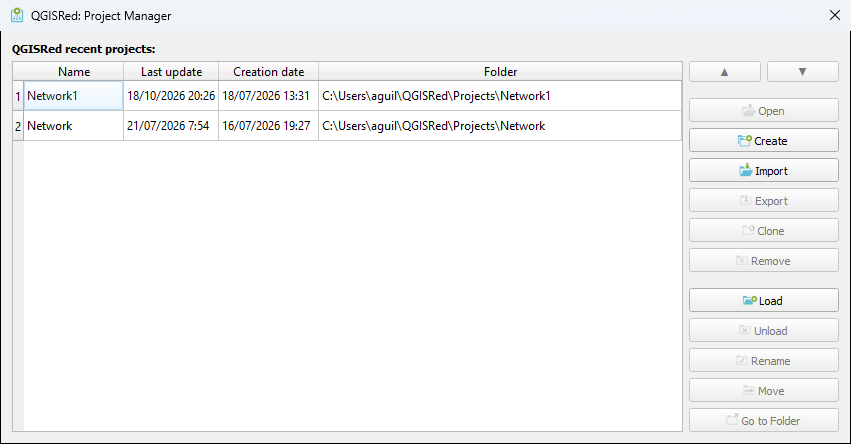
QGISRed Project Manager Window
List of recent projects#
The window shows all projects that have ever been opened on this computer. For each project the network name and folder path are displayed.
- Double click on any project → opens it directly.
- If there is an open project with unsaved changes, QGISRed will ask for confirmation before closing it.
📝 If the
.qgz/.qgsfile registered for the project no longer exists at the expected path (for example, after moving the folder by hand outside QGISRed), the warning "We cannot find the QGIS project file. Do you want to find this file manually?" appears. Answering Yes lets you locate it with a file explorer; answering No, QGISRed rebuilds the project directly from the groups saved in the metadata (Inputs, Results, Issues… all that exist), not just the input layers.
Available operations#
Load#
Allows you to add a project that does not appear in the history to the list (for example, if the project was created on another computer and the folder was copied).
- Press Load.
- Enter the network name (no extension, no folder prefix).
- Select the project folder with the explorer.
- QGISRed will verify that the file
{nombre}_Pipes.shpexists in that folder before opening it.
Clone#
Create a complete copy of the project under a different name. Useful for creating variants without losing the original.
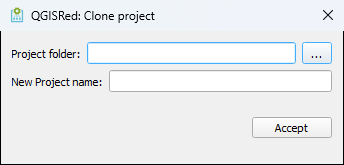
Project Clone Dialog
- Select the project you want to clone.
- Press Clone.
- Enter the new network name.
- Choose the destination folder (it can be the same folder if the name is different).
💡 Cloning copies all SHP, DBF files and metadata. Simulation results are not cloned to save space.
Export#
Packages the selected project in a portable ZIP (SHP/DBF, .qgz and, optionally, results, issues, queries, auxiliary layers and complementary data). This is the only way to export a project: there is no longer an equivalent button in the Project bar.
- Select the project from the list (it is not necessary to have it open in QGIS).
- Press Export.
- Complete the export dialog.
See the full detail of the dialogue, what is included and what is not, in Save, export and close project.
Rename#
Renames the network and automatically updates the name of all files in the project (SHP, DBF, PRJ, etc.). It is not a simple name change in the list: it moves and renames the files on disk.
- Select the project.
- Press Rename.
- The dialog offers three independent boxes: Rename project data (renames the network data files) and Rename project map file (also renames the QGIS project
.qgz/.qgs, if it exists) — both checked by default — and Rename project folder: (also renames the folder containing the project), unchecked by default. At least one must be marked. - Enter the new name in the field corresponding to each active box. The folder field automatically suggests the same name as the project as long as it hasn't been edited by hand.
📝 Rename project folder is disabled, with the warning "Another project in this folder is currently open in QGIS", if the folder contains a different project from the one you are renaming and that other project is currently open in QGIS — to avoid moving or deleting files that QGIS holds a lock on. The rest of the projects sharing the folder keep appearing normally in the list after the rename.
Delete from list (Unload)#
Removes the project from recent history without deleting files on disk. The project still exists in your folder and can be added back with Upload.
Delete from disk (Delete)#
Removes the project from history and sends all its files (including a .qgz saved outside the project folder, if any) to the Windows recycle bin — it does not delete them permanently.
❗ QGISRed will ask for confirmation: "Project files will be moved to the recycle bin. Are you sure?". If a file can't be moved to the recycle bin, QGISRed asks whether to delete it permanently; if that would leave the project only partially deleted, it warns first that the project will be left in an inconsistent state.
Open folder#
Open Windows Explorer directly to the selected project folder.
How QGISRed identifies the active project#
When you open QGIS with a .qgz project already saved, QGISRed automatically recognizes the active network by searching the loaded layers for which one corresponds to _Pipes.shp and has the internal property qgisred_identifier.
If the piping layer is loaded but does not have that identifier (for example, because it was added manually without going through QGISRed), the plugin will warn with the message:
"Please, open the project from the QGISRed Project Manager"
In that case, close the layers and use the Project Manager to open the project correctly.