 QGISRed
6.2 Attribute Check
The four tools in the second group of the Debug bar audit the alphanumeric data of the pipes to detect transcription errors, inconsistent values or empty fields that would prevent a correct simulation or the calculation of aging roughness.
They all operate on the current selection or on the entire network if there is no previous selection.
Check pipe lengths#
Debug bar → Check pipe lengths
Compares the length stored in the Length attribute of each pipe with the actual geometric length calculated from the SHP vertices.
Tolerance Dialogue#
When you activate the tool, a dialog opens where you define:
| Field | Description |
|---|---|
| Tolerance (%) | Maximum acceptable percentage difference between attribute length and geometric length |
| Update lengths | If checked, replaces the attribute value with the geometric length on all pipes that exceed the tolerance |
When differences appear#
- Pipes imported from a
.inpwhereLengthwas calculated with a different scale. - Pipes whose geometry was modified (moved vertices) without updating the attribute.
- Networks in projected CRS vs. geographic: if the coordinates of
.inpare in degrees and used as meters, the longitudes are incorrect.
QGISRed calculates the geometric length always in the CRS units of the project. If the project uses geographic coordinates (degrees), the longitudes will be incorrect. Always use a projected metric CRS.
Check diameters#
Debug bar → Check diameters
Review the diameters of all selected pipes (or the entire network) and point out those that are outside the usual range or are zero.
What it detects#
- Pipes with zero or negative diameter (import error or manual editing).
- Pipes with diameters that are statistically atypical compared to the rest of the model (extremely high or low values).
- Pipes without assigned diameter (empty field).
Result#
Features with problematic diameters are selected on the map and a summary is displayed in the message panel. It does not automatically modify any values: the correction must be done manually from the properties dialog or attribute table.
Check pipe materials#
Debug bar → Check pipe materials
Check that the value of the Material field of each pipe is defined in the Project Materials Table (Project Bar → Materials Table).
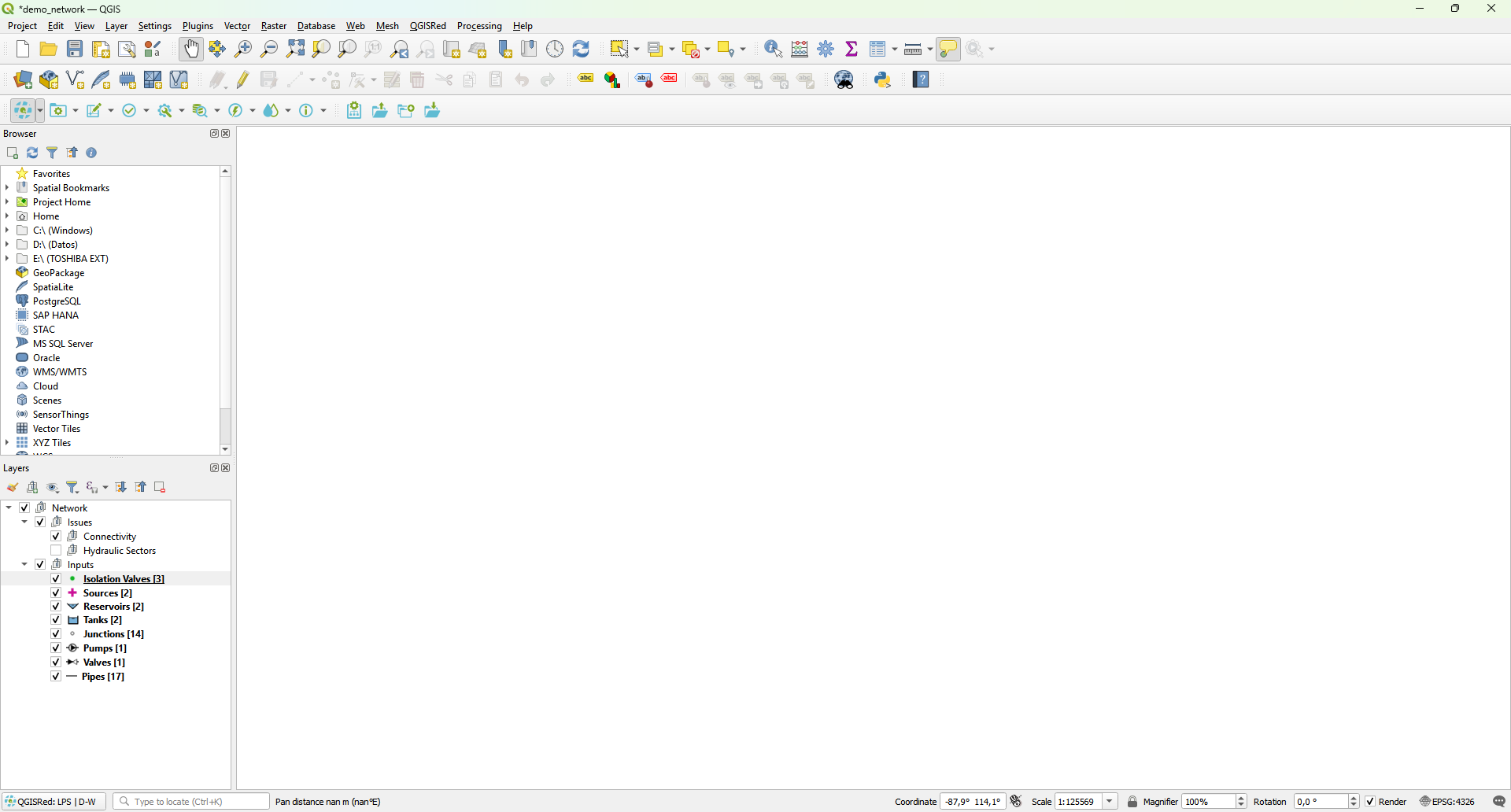
Check pipe materials result: pipes with invalid material selected on the map
It does not display any dialog of its own: it selects directly on the map the items with problems and summarizes the result in the QGIS message pane.
What it detects#
- Pipes with empty or no material.
- Pipes with a material code that does not exist in the project table (for example, a code inherited from another GIS system).
- Pipes with the value
UNKNOWN(default value when the material is not known).
Why it is important#
The material is essential for the Assign Roughnesses tool (Tools Bar), which calculates the aging roughness based on the material and the installation date. If the material is invalid, the roughness cannot be calculated.
Check pipe installation dates#
Debug bar → Check pipe installation dates
Checks the pipes InstallYear field, which stores the year of installation in numerical format (YYYY).
What it detects#
| Problem | Description |
|---|---|
| Empty date | Field InstallYear null or zero |
| Future date | Year greater than current year |
| Incorrect format | Non-numeric values or values outside reasonable range (before 1800 or after current year) |
Why it is important#
The installation date, combined with the material, allows the current roughness of each pipe to be calculated using the aging formula:
Rugosidad = Rugosidad_inicial + (Año_actual − InstallYear) × Incremento_anual
If the date is incorrect, the calculated roughness will be wrong and the hydraulic simulation will produce results that are far from reality.