 QGISRed
1.4 Dependency Management
QGISRed needs a set of external calculation libraries (QGISRed plugin dependencies) to be able to run most of its tools. These libraries are DLLs compiled in .NET that contain the hydraulic motor (based on the EPANET 2.3 toolkit) and the geospatial processing algorithms.
First installation#
The first time you try to use any QGISRed tool, the plugin detects that the dependencies are not installed and displays a confirmation dialog:
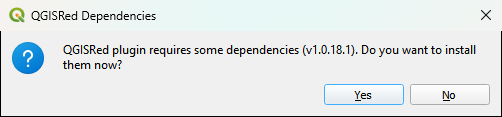
QGISRed requests permission to download the dependencies.
- Yes: QGISRed downloads and installs the libraries automatically. The download requires an internet connection and may take a few seconds depending on the connection speed.
- No: The tool does not run. The dialog will appear again the next time you try to use the plugin.
Installation does not require administrator permissions. The DLLs are installed in the user folder
%APPDATA%\QGISRed\, not in system folders.
Where are they installed#
The dependencies are stored in:
C:\Users\{tu_usuario}\AppData\Roaming\QGISRed\
You can access this folder by typing %APPDATA%\QGISRed directly into the address bar of Windows Explorer.
Update dependencies#
When a new version of QGISRed is released that includes an updated version of the dependencies, the plugin automatically detects this upon startup and proposes the update with the same confirmation dialog.
Troubleshooting#
Download fails or is interrupted
Verify that you have an internet connection and that no corporate firewall is blocking the download. If the problem persists, contact your network administrator to allow outgoing connections from QGIS.
The plugin displays the dependencies dialog every time it is opened
It means that the libraries were not installed correctly in previous sessions. Check that folder %APPDATA%\QGISRed\ exists and contains files .dll. If it is empty, delete it completely and try the installation again.
The device does not have internet access
You can install dependencies offline if you have the necessary files:
- ZIP of dependencies: asks someone with the plugin already installed for the contents of their
%APPDATA%\QGISRed\folder (same version of QGISRed). Copy those files to your own folder%APPDATA%\QGISRed\. - .NET Framework 4.8.1 Installer: Download it to another computer with internet or request the MSI from someone. Run it before using the plugin.
Once the DLLs have been copied and with the .NET Framework 4.8.1 installed, the plugin will work without requiring an internet connection at any time.